OutlierKit Chrome Extension: Install Guide & How to Use It
The OutlierKit Chrome Extension overlays color-coded outlier multipliers directly on YouTube search results and channel pages. Install it from the Chrome Web Store, connect it to your OutlierKit account, and instantly see which videos are outperforming their channel averages without leaving YouTube.
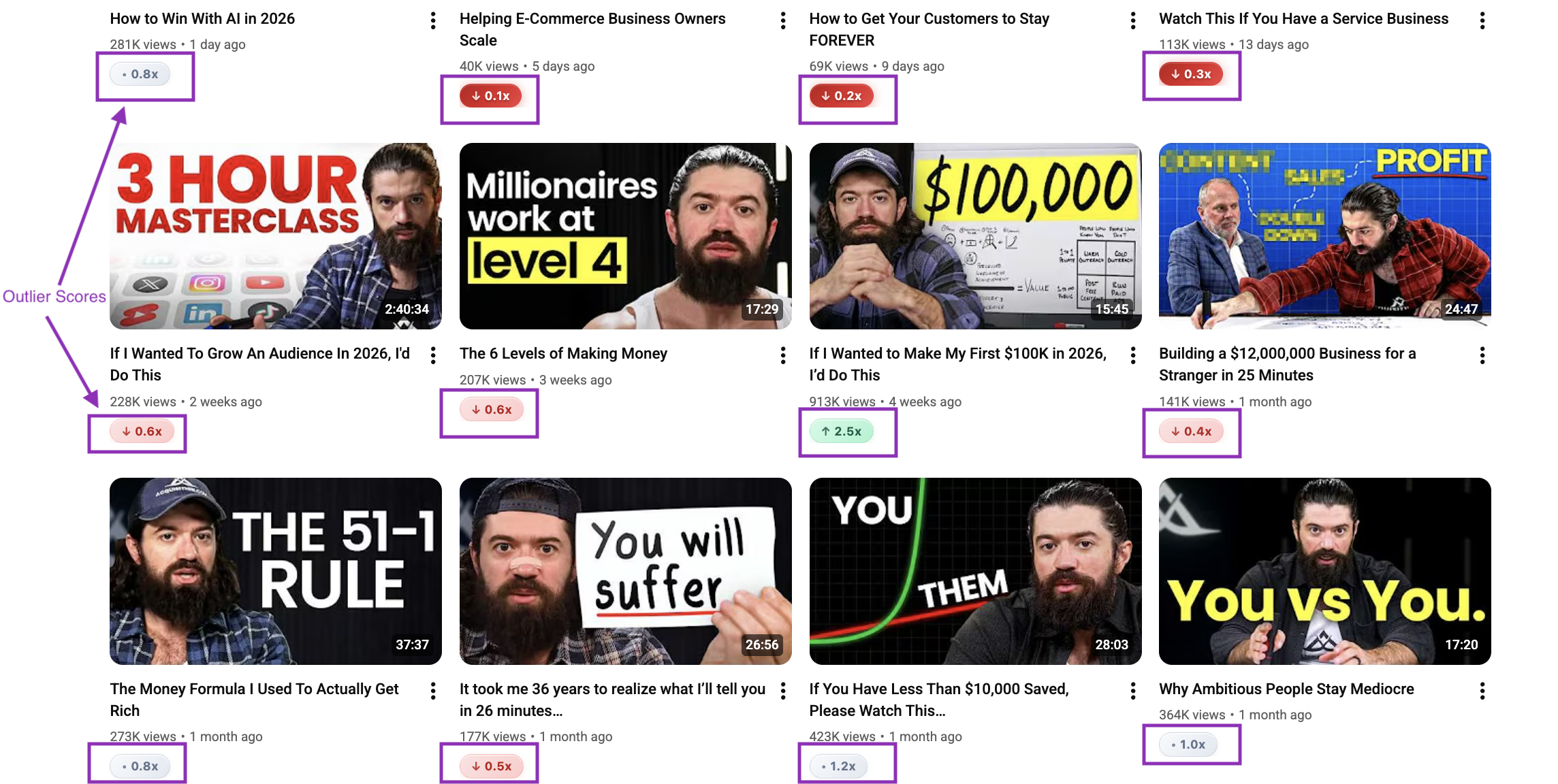
OutlierKit Chrome Extension: color-coded outlier scores overlaid directly on YouTube thumbnails
Key Takeaways
| Step | Feature / Area | Quick Win |
|---|---|---|
| 1. Install | Chrome Web Store | Search "OutlierKit" or follow the direct link and click "Add to Chrome" |
| 2. Connect | Account Authentication | Click the extension icon and sign in with your OutlierKit credentials |
| 3. Colors | Multiplier System | Green (3x-5x), Blue (5x-10x), Purple (10x+), Gray (<3x) |
| 4. Search | YouTube Search Results | See outlier scores overlaid on every search result thumbnail |
| 5. Channels | Channel Video Pages | Browse any channel and instantly spot their best-performing outliers |
| 6. Deep-Dive | Full Platform Link | Click any outlier score to open the full analysis in OutlierKit |
| 7. Settings | Extension Preferences | Toggle overlays on/off and adjust display preferences |
Install from Chrome Web Store
The OutlierKit Chrome Extension is available for free on the Chrome Web Store. You can find it by searching "OutlierKit" in the store or by following the direct link from the OutlierKit website.
Step-by-step:
- 1Open Chrome and go to the Chrome Web Store (chromewebstore.google.com)
- 2Search for "OutlierKit" in the search bar
- 3Click on the OutlierKit extension listing (look for the official publisher)
- 4Click the "Add to Chrome" button in the top right
- 5Confirm the permissions dialog by clicking "Add extension"
- 6The OutlierKit icon will appear in your browser toolbar
Tip: Pin the extension to your toolbar for easy access: click the puzzle-piece icon in Chrome and toggle the pin next to OutlierKit.
Connect to your OutlierKit account
After installing, connect the extension to your OutlierKit account so it can fetch outlier data for the videos you browse. Any OutlierKit plan works, and so does the 30-credit free trial.
Step-by-step:
- 1Click the OutlierKit icon in your Chrome toolbar
- 2A popup will appear asking you to sign in
- 3Enter your OutlierKit email and password (or use Google SSO if you signed up that way)
- 4Once authenticated, the popup will show a green "Connected" status
- 5Navigate to YouTube.com to verify the extension is active
Tip: If you do not have an OutlierKit account yet, create one at outlierkit.com. The free trial works with the extension.
Understanding color-coded multipliers
The extension overlays a small color-coded badge on every YouTube video thumbnail showing how that video performed relative to its channel average. The multiplier number (e.g., 4.2x) means the video got 4.2 times the views that channel typically gets. The color tells you the tier at a glance.
Color tiers:
- 1Purple badge (10x+): Exceptional viral content that massively outperformed the channel average
- 2Blue badge (5x-10x): Strong outlier with high potential patterns worth analyzing
- 3Green badge (3x-5x): Good performer that signals a working topic or format
- 4Gray badge (<3x): Normal performance, not classified as an outlier
Tip: Focus your research time on purple and blue badges. These represent the highest-signal content patterns: the topics, titles, and thumbnails that audiences responded to most.
Exceptional viral content
Must-study: deconstruct the title, thumbnail, topic, and hook
Strong outlier
High potential pattern: analyze what made it resonate
Good performer
Worth studying: consistent signal that the topic or format works
Normal performance
Not an outlier: skip unless you need baseline comparison data
Using the extension on YouTube search results
When you search for anything on YouTube, the extension automatically overlays outlier scores on every search result thumbnail. This lets you immediately see which results are outlier content for their respective channels without clicking into each one.
Step-by-step:
- 1Go to YouTube and search for a topic in your niche (e.g., "best cameras 2026")
- 2Wait a moment for the extension to load outlier data
- 3Look for the colored multiplier badges on each search result thumbnail
- 4Scan for purple and blue badges: these videos significantly outperformed their channel averages
- 5Hover over a badge to see additional details (exact multiplier, channel average views, video views)
Tip: Use this to quickly evaluate search results before deciding which videos to study. A video with a 7x multiplier on a 100K-average channel is a stronger signal than a 2x on a 10M-average channel.
Using the extension on channel pages
Visit any YouTube channel and the extension will overlay outlier multipliers on every video in their uploads grid. This is the fastest way to find a competitor's best-performing content without manually checking view counts.
Step-by-step:
- 1Navigate to any YouTube channel's Videos tab
- 2The extension overlays multiplier badges on every video thumbnail
- 3Sort by date to see which recent videos are outliers
- 4Scroll through to identify clusters of purple/blue videos: these indicate repeatable patterns
- 5Click on any outlier to watch it and study the title, thumbnail, and hook strategy
Tip: Check 3-5 competing channels in your niche. Look for common patterns across their outliers: shared topics, title structures, or thumbnail styles that consistently earn high multipliers.
Connecting insights to the full platform
Every outlier badge is a gateway to deeper analysis. Click any outlier score on a video to open the full OutlierKit web app with detailed metrics, trend data, and competitive context for that video.
Step-by-step:
- 1Click the outlier multiplier badge on any video thumbnail
- 2The OutlierKit web app opens in a new tab with the full analysis for that video
- 3Review detailed metrics: exact view count, publish date, engagement rate, and channel baseline
- 4Use the platform tools (Outlier Finder, Competitor Studio, Video Analyzer) to go deeper
- 5Save interesting outliers to your research boards for later reference
Tip: The extension is your discovery layer. The full platform is your analysis layer. Use the extension to quickly scan and the platform to deeply understand why something worked.
Managing extension settings
Customize how the extension displays outlier data. You can toggle overlays on and off, change display preferences, and manage your connected account.
Step-by-step:
- 1Click the OutlierKit icon in your toolbar to open the popup
- 2Toggle "Show overlays" to turn badges on or off globally
- 3Adjust the minimum multiplier threshold if you only want to see stronger outliers
- 4Click "Sign out" to disconnect your account
- 5Right-click the extension icon for quick options (manage extension, remove from Chrome)
Tip: If you find overlays distracting during casual YouTube browsing, toggle them off from the popup. Turn them back on when you switch to research mode.
Frequently Asked Questions
Is the Chrome Extension free?
Yes, the extension is completely free to install and use. You need an OutlierKit account (any plan, or the 30-credit free trial) to connect and see outlier data.
Does the extension work on Firefox or Safari?
Currently the extension is only available for Chrome and Chromium-based browsers (Edge, Brave, Arc). Firefox and Safari versions are on our roadmap.
Does the extension slow down YouTube?
No. The extension makes lightweight API calls and adds minimal DOM overlays. It has negligible impact on page load times.
What do the colors mean?
Green = 3x-5x the channel average (good performer), Blue = 5x-10x (strong outlier), Purple = 10x+ (exceptional viral content), Gray = below 3x (normal performance).
Can I use the extension without an OutlierKit account?
You need an OutlierKit account to authenticate. A free trial account works with the extension.
How do I uninstall or disable the extension?
Right-click the extension icon and select "Remove from Chrome" to uninstall, or go to chrome://extensions to disable it temporarily.
Related Guides
Step-by-step manual and automated methods for identifying high-performing content
Outlier Finder ToolUse the full platform to deep-dive into outlier patterns across any niche
Best YouTube Analytics ToolsCompare OutlierKit with other YouTube analytics platforms and extensions
YouTube Analytics Chrome ExtensionsOverview of all analytics-focused Chrome extensions for YouTube creators

Ready to grow your YouTube channel?
OutlierKit helps you find winning content strategies with competitor analysis and keyword research.
Try OutlierKit Free